Capture your view
Choose a visible area, drag a selection, or capture the main page from top to bottom.
 Page Brush
Capture a webpage. Add an arrow, a note, or a little privacy. Save a clear screenshot without an account, upload or watermark.
Submitted to the Chrome Web Store. Pending review; installation will be available after approval.
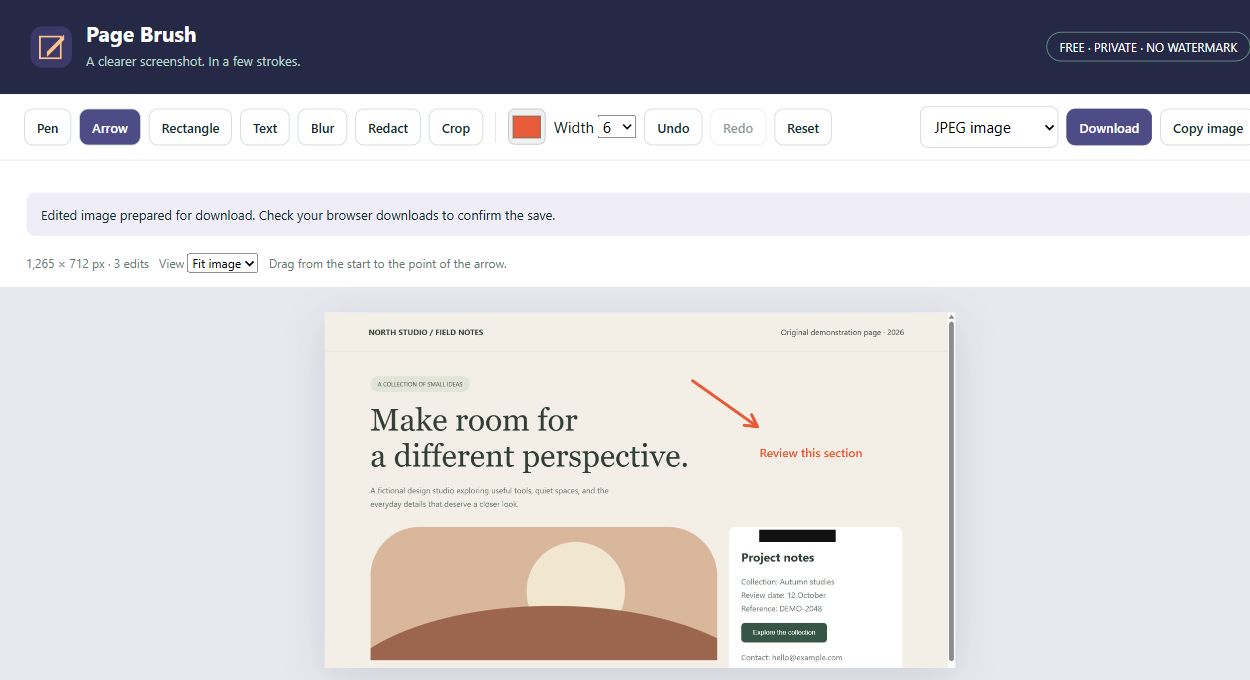
Choose a visible area, drag a selection, or capture the main page from top to bottom.
Draw, add arrows, outline details, place text, crop, blur or cover sensitive details with solid redaction.
Export a flattened PNG, JPEG or multi-page PDF. Copy the edited image to your clipboard.
Click Page Brush and choose a capture mode.
Make your edits in the local image workspace.
Download PNG, JPEG or PDF, or copy the image.
No account to create. No image processing server. No analytics script following your work.
Screenshots and edits are processed on your device. You decide when to export or copy an image, and what to share.
No. All current capture, annotation and export tools are free, with no watermark or account.
Use solid Redact to cover sensitive information. Blur only softens an area and may leave clues. Exporting flattens your edits into the output image.
Yes. Open the image editor from the popup and choose a PNG, JPEG, WebP, GIF or AVIF file from your device. Animated images are edited as a still frame.
Browser-protected pages cannot be captured through this workflow. Large or dynamically changing pages and nested scrolling containers have limitations described below.
Capture works on ordinary HTTP/HTTPS webpages. Internal browser pages and the Chrome Web Store are restricted. Full-page capture covers the main vertical document at the viewport width; nested scroll regions, infinite feeds and changing layouts may not capture as expected. Keep the source tab active. Limits: 35 screens, 40 megapixels, 16,000 px wide and 30,000 px high. Imported images must be under 25 MB.
Every current feature is free. Need a hand or have an idea?
Get help or share feedback ↗